
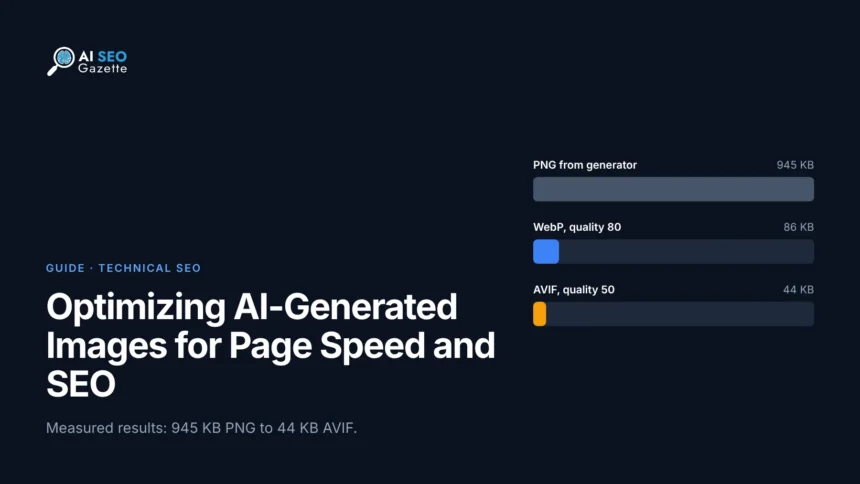

Image optimization for SEO means serving each AI-generated image as a small WebP or AVIF file sized to its display slot, with a descriptive file name, accurate alt text, width and height attributes, and no lazy loading on the main image above the fold. In our test, that cut a 945 KB generator PNG to 44 to 86 KB.
Key takeaways
- AI generators usually hand you a PNG. For a photo-style image that is the heaviest option you have. Our 945 KB Stable Diffusion PNG became 86 KB as WebP and 44 KB as AVIF.
- Re-saving that PNG with lossless optimization saved 0.2%. Changing format did the real work.
- Resize to the slot the image fills on the page before you compress. At 768 px wide, the same image dropped to 26 KB.
- Never lazy-load the image that is likely to be your Largest Contentful Paint element, and give it
fetchpriority="high". - Write alt text for a person who cannot see the image. Then check the file name, dimensions and text inside the image by hand.
Why image speed matters for SEO and revenue
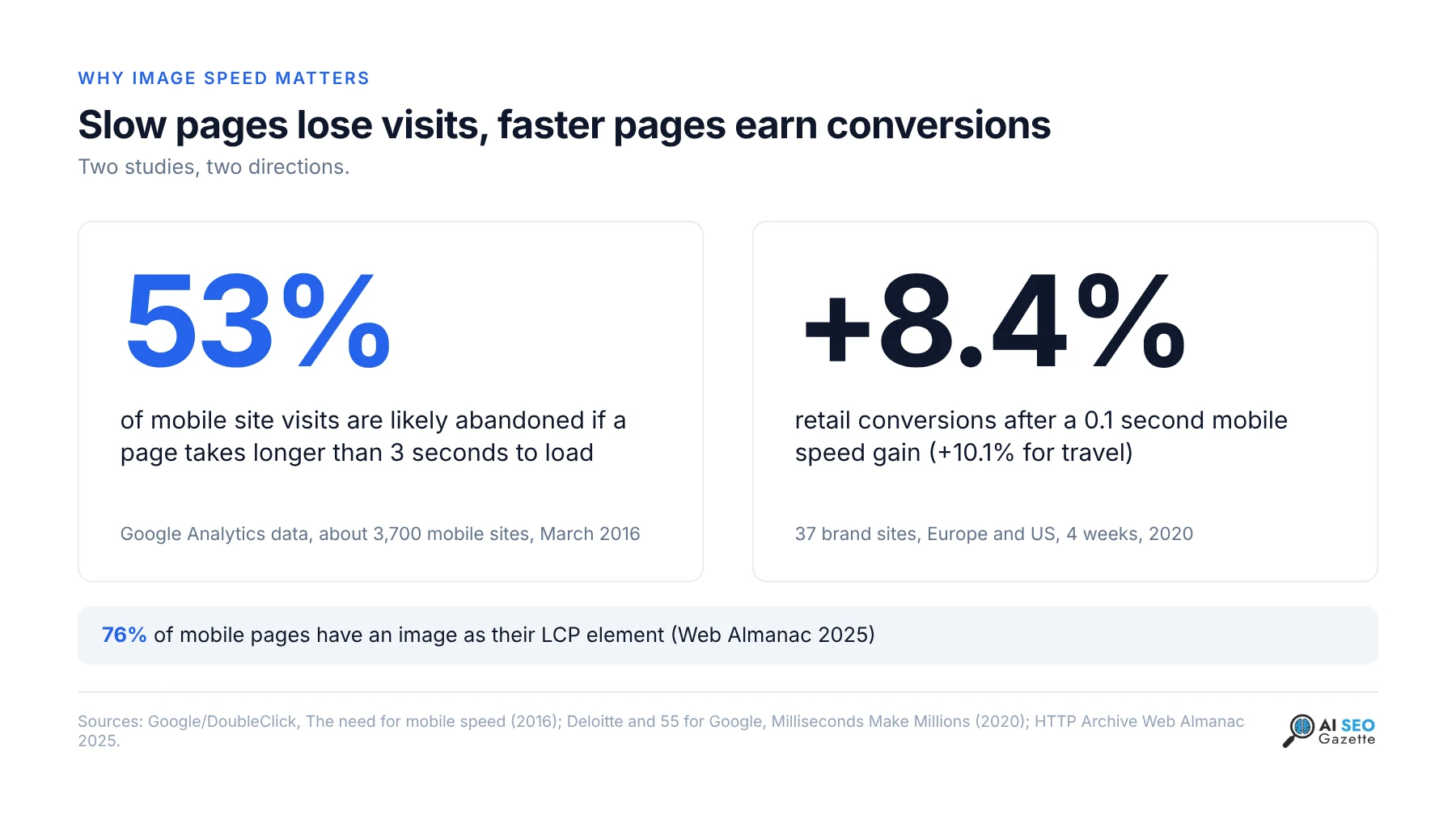
Speed has a direct cost. In September 2016, Google’s DoubleClick team published The need for mobile speed, which reported that 53% of mobile site visits are likely to be abandoned if pages take longer than 3 seconds to load. The figure came from anonymized Google Analytics data on about 3,700 mobile sites, collected in March 2016.
Small gains also pay. In 2020, Deloitte and the agency 55 published Milliseconds Make Millions, a study commissioned by Google. Over four weeks they tracked 37 retail, travel, luxury and lead generation brand sites in Europe and the US. A 0.1 second improvement in mobile site speed went with an 8.4% rise in retail conversions and a 10.1% rise in travel conversions.
Images sit at the center of this. The HTTP Archive Web Almanac 2025 performance chapter found that an image was the Largest Contentful Paint (LCP) element on 76% of mobile pages and 85.3% of desktop pages. Google’s LCP guidance on web.dev sets a good LCP at 2.5 seconds or less, measured at the 75th percentile of page loads. On most blog posts, the featured image is the LCP element. If that image is a raw AI export, it is often the slowest thing on the page.
This guide covers the technical side: format, compression, dimensions, alt text, file names, lazy loading and LCP. If you need the copyright and labelling side, read our guide to using AI images safely for SEO. For making the pictures in the first place, see how to create blog illustrations with AI image generators.
Image optimization for SEO: what to do before an AI image goes live
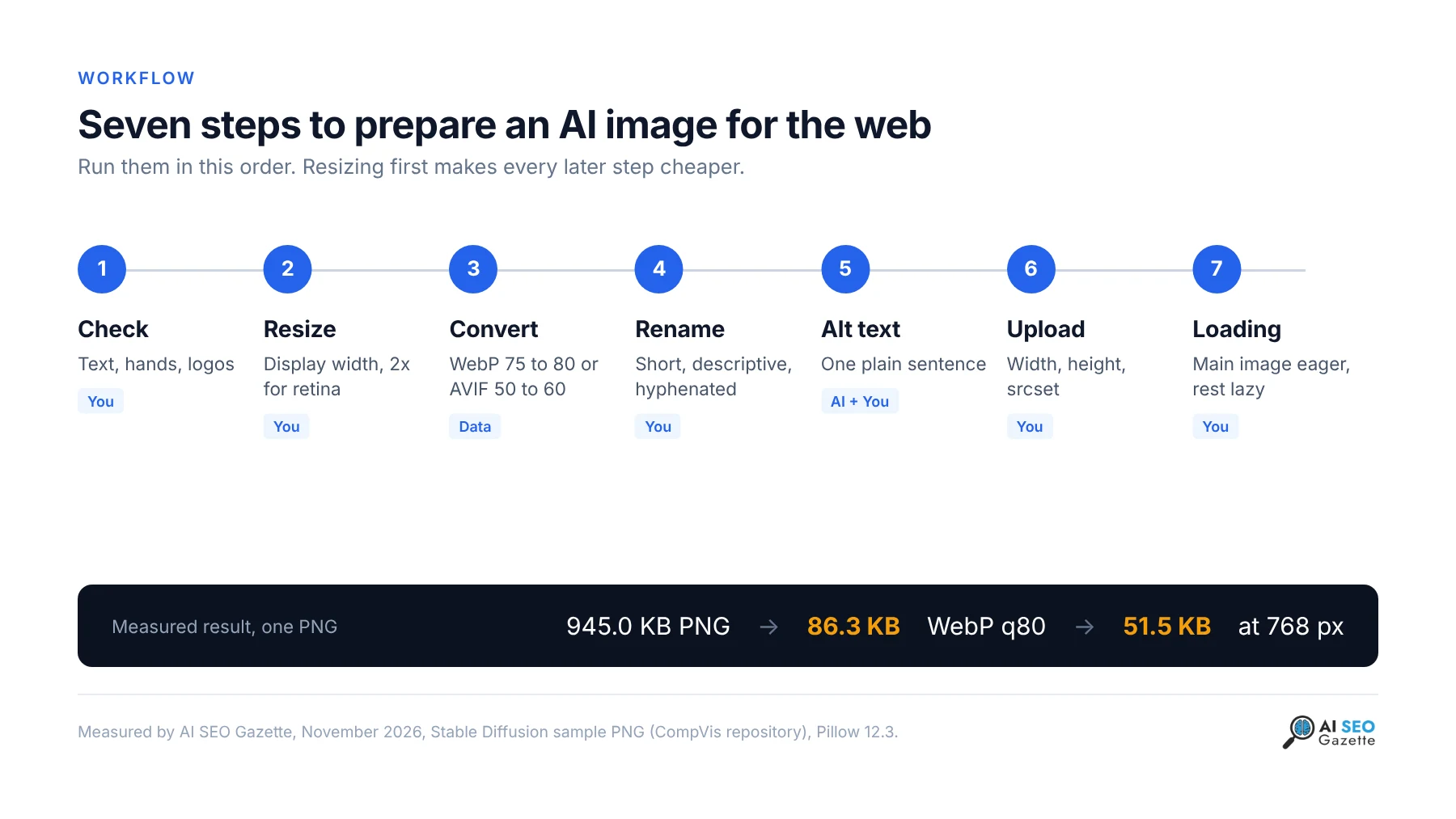
Treat every generated image as raw material. It needs the same handling as a photo straight off a camera. The order matters, because resizing first makes every later step cheaper.
- Check the image itself: garbled text, wrong details, odd hands.
- Crop and resize to the largest width the image will be shown at.
- Convert to WebP or AVIF and pick a quality setting.
- Rename the file with a short, descriptive name.
- Write alt text.
- Upload with width and height set, plus smaller versions for
srcset. - Set loading behavior: eager and high priority for the main image, lazy for the rest.
If you already run a set process for AI drafts, add these seven steps to it. Our AI content workflow from idea to publish has a natural slot for them, right before the final review.
Which format should you use for AI-generated images?
Google’s image SEO best practices list the formats Google Search supports: BMP, GIF, JPEG, PNG, WebP, SVG and AVIF. All of them can rank. The choice is about weight and quality.
For the painterly, photo-like output most generators produce, PNG is the wrong container. PNG is lossless, so it stores every bit of noise and texture the model drew. WebP and AVIF throw away detail you cannot see and keep the file small. Use this table as a starting point.
| Image type | Format to serve | Starting quality |
|---|---|---|
| Photo-style or painterly AI image | WebP or AVIF | WebP 75 to 80, AVIF 50 to 60 |
| Hero or featured image (likely LCP) | AVIF with WebP fallback, or WebP alone | As above, then check at 100% zoom |
| Flat illustration, few colors | WebP (lossless or high quality) or PNG | Test both, keep the smaller |
| Needs transparency | WebP or AVIF (both support alpha), PNG as fallback | WebP 80 |
| Diagram, logo or icon | SVG if you can redraw it as vectors | Not applicable |
| Image with lots of small text | Rebuild the text in HTML, or use WebP at 85 or higher | Check text edges at 100% zoom |
Quality numbers are not comparable across formats. AVIF at 50 is not “worse” than WebP at 80. Judge by file size and by eye.
How do you compress images for web without visible damage?
Compress images for web in two passes. First, pick a quality and export. Second, open the result at 100% zoom next to the original and look at the busy areas: foliage, hair, fabric, small text. If you can see blur or blocky patches there, step the quality up by 5 and try again.
Most AI images tolerate more compression than people expect, because generators already add a soft, slightly noisy texture. In our test below, WebP at quality 80 was hard to tell from the original even at 2x zoom. AVIF at 50 and WebP at 60 visibly softened fine leaves and edges at 2x zoom, though they looked fine at normal size.
You do not need an expensive suite. Browser tools such as Free Image Compressor Online handle one-off files, and NeatCompress compresses images on your own device without uploading them, which helps with client work under NDA. On WordPress, an image plugin or your CDN can convert uploads to WebP or AVIF automatically. Check what it actually serves, not what the settings page says.
One warning on metadata. Compression and format changes often strip embedded data. That is good for weight, but it can also remove an AI label such as the IPTC DigitalSourceType field. If you need that label, add it after conversion and confirm it survived. Our AI images for SEO guide covers how.
What size should an AI image be?
Generators pick sizes for their own reasons, not for your layout. A 1792 px wide export placed in an 860 px content column wastes bytes on every load. Resize to the widest size the image is actually displayed at. If you want sharp results on high-density phone screens, keep a version at about twice the display width and let the browser choose.
That is what srcset and sizes do. Google’s image documentation recommends responsive images through srcset or <picture>, and asks you to always keep a fallback URL in the src attribute, because some browsers and crawlers do not read srcset. Google also says it does not index CSS background images, so a featured image set only as a CSS background will not show up in Google Images.
<img src="ai-seo-audit-dashboard-860.webp"
     srcset="ai-seo-audit-dashboard-480.webp 480w,
             ai-seo-audit-dashboard-860.webp 860w,
             ai-seo-audit-dashboard-1720.webp 1720w"
     sizes="(max-width: 900px) 100vw, 860px"
     width="860" height="484"
     alt="Dashboard showing an AI SEO audit with a falling LCP score and three flagged images"
     fetchpriority="high">
Always set width and height. They let the browser reserve space before the file arrives, which prevents layout shift. The Web Almanac 2025 found that 62% of mobile pages still fail to set dimensions on at least one image.
How do you write image alt text for SEO?
Google’s image guidance calls alt text the most important attribute for giving it information about an image. Google uses alt text together with computer vision and the page content to work out what an image shows. The same page warns against keyword stuffing in alt attributes, which it says creates a poor experience and may cause your site to be seen as spam.
Good alt text for image SEO is plain description. Say what the image shows and why it is on this page, in one sentence, usually under 125 characters. Use a keyword only if it describes the image honestly.
- Weak:
alt="ai image seo image optimization seo" - Weak:
alt="futuristic-city-1024x512" - Better:
alt="Overgrown futuristic city with moss on hovering platforms" - Best, in a post about AI image compression:
alt="AI-generated city scene used in our WebP and AVIF compression test"
AI captioning tools can draft alt text quickly. Image Describer generates descriptions and alt text from an upload. Treat the draft as a first pass. Models describe what they see, not why the image is on your page, and they sometimes invent details.
File names work the same way, with less weight. Google says file names give “very light clues” about subject matter and prefers short, descriptive names such as my-new-black-kitten.jpg over IMG00023.JPG. Rename generator exports before upload. A name built from the first 60 characters of your prompt plus a random string helps no one.
Should you lazy-load AI images?
Yes for images below the fold. No for the main image at the top. Google’s Optimize LCP guide on web.dev is blunt: never lazy-load your LCP image, because it always adds load delay. The same guide flags JavaScript lazy-load libraries that hide the real URL in a data-src attribute, since the browser cannot find the image until the script runs.
This mistake is common. The Web Almanac 2025 found that about 16% to 17% of pages lazy-load their LCP image. Native loading="lazy" accounted for 10.4% of mobile pages and data-src style scripts for 5.9%.
For the main image, do the opposite. Add fetchpriority="high" so the browser fetches it early. web.dev advises setting high priority on no more than one or two images, because marking everything as urgent cancels the benefit. The Almanac found fetchpriority="high" on 17% of mobile pages with an LCP image, up from 15% in 2024.
Worked example: we compressed a real AI-generated PNG
Most advice on image optimization for SEO quotes vendor savings. We wanted our own numbers. In November 2026 we took a sample output that the CompVis team published in its Stable Diffusion repository on GitHub: a 1024 x 512 px PNG of an overgrown sci-fi city, with no embedded metadata. We converted it with Pillow 12.3 (libwebp at method 6, libavif at default speed) and scored each result against the original with SSIM, a similarity score where 1.000 means identical.
| Version | Dimensions | File size | Saving vs PNG | SSIM |
|---|---|---|---|---|
| Original PNG from the generator | 1024 x 512 | 945.0 KB | 0% | 1.000 |
| PNG, lossless optimization | 1024 x 512 | 943.2 KB | 0.2% | 1.000 |
| JPEG, quality 80 | 1024 x 512 | 108.0 KB | 88.6% | 0.933 |
| WebP, quality 90 | 1024 x 512 | 146.4 KB | 84.5% | 0.969 |
| WebP, quality 80 | 1024 x 512 | 86.3 KB | 90.9% | 0.941 |
| WebP, quality 60 | 1024 x 512 | 56.8 KB | 94.0% | 0.907 |
| AVIF, quality 70 | 1024 x 512 | 93.8 KB | 90.1% | 0.952 |
| AVIF, quality 50 | 1024 x 512 | 44.3 KB | 95.3% | 0.902 |
| WebP, quality 80, resized | 768 x 384 | 51.5 KB | 94.6% | n/a |
| AVIF, quality 50, resized | 768 x 384 | 26.4 KB | 97.2% | n/a |
What the numbers say:
- Lossless PNG tools barely help with this kind of image. The format change is where 90% or more of the weight goes.
- WebP at 80 is a safe default. It kept the image visually intact and still saved 90.9%.
- AVIF at 70 came close to WebP 80 on size (93.8 KB against 86.3 KB) and scored a little higher on SSIM. AVIF at 50 halved the file again, at a visible cost in fine detail when zoomed.
- Resizing stacks with format. WebP 80 at 768 px was 40% lighter than WebP 80 at full size.
We repeated the run on a second sample PNG from the same repository (972.3 KB). The pattern held: WebP 80 came out at 93.4 KB (90.4% smaller) and AVIF 50 at 47.2 KB (95.1% smaller).
We also checked how our own featured images are delivered. The files themselves are in good shape: the featured image on our AI illustration guide is served as an 860 x 484 WebP at 15.9 KB, from a 1,800 px master of 40.0 KB. Two delivery issues showed up in the HTML, though. Our caching plugin’s lazy-load feature moves the featured image URL into a data-src attribute, the pattern web.dev warns against for an LCP image. And fetchpriority="high" sits on four site logo tags instead of on the featured image. The master file is also named featured.webp, which tells Google nothing. Good compression does not help much if the browser finds the image late, so these are the fixes on our own list.
Copy-paste checklist for every AI image
Paste this into your publishing template or your content audit checklist so old posts get the same treatment.
[ ] Looked at the image at 100% zoom: no garbled text, extra fingers, fake logos
[ ] Cropped and resized to the widest display size (plus a 2x version if needed)
[ ] Converted to WebP (quality 75 to 80) or AVIF (quality 50 to 60)
[ ] Compared the export with the original at 100% zoom
[ ] File name: short, descriptive, hyphenated (no prompt text, no random strings)
[ ] Alt text: one plain sentence describing the image in context, no keyword lists
[ ] width and height attributes set
[ ] srcset and sizes in place, with a normal src fallback
[ ] Main above-the-fold image: no loading="lazy", no data-src, fetchpriority="high"
[ ] All other images: loading="lazy"
[ ] Image is an <img> element, not a CSS background
[ ] AI label metadata added after conversion, if your policy needs it
Where AI image generators get it wrong
Generators optimize for how the picture looks. File weight is your problem. These are the issues we check for by hand.
- Heavy PNG exports. The default download is often a lossless PNG close to 1 MB, as in our test. Never upload it as is.
- Wrong dimensions and aspect ratio. Square outputs get cropped by themes in unpredictable ways. Generate or crop to your template’s ratio, such as 16:9 for a typical featured image slot, so the focal point survives.
- Text inside the image. Generated lettering is often misspelled, and text baked into pixels is invisible to search and screen readers anyway. Put headlines and labels in HTML. If a graphic needs words, fix them with an editor such as EditTextImage and repeat the key words in the alt text or caption.
- Prompt-based file names. Downloads are often named after the prompt plus a random ID. Rename before upload.
- No alt text at all. Generators do not write alt text, and some upload workflows fill the field with the file name, as we found on a batch of our own older posts. Check the live HTML, not the media library.
- Metadata you did not expect. Some tools embed generation details or provenance data in the file. Inspect it with an EXIF viewer, then decide what to keep.
- Too many images. AI makes images cheap to produce, so posts fill up with decorative ones. Every extra image costs bytes. Keep the ones that explain something.
If you are building a tool stack for this, our guide to AI tools for bloggers, sorted by job covers the wider setup, and you can browse more generators and editors in our AI image generators directory.
Frequently asked questions
Does Google treat AI-generated images differently for image SEO?
Not for the technical signals. Google reads the same things on any image: the img element, alt text, file name, surrounding text, and page speed. Its image guide lists the supported formats and makes no exception for AI output. Labelling and copyright are separate questions, covered in our AI images for SEO guide.
Is WebP or AVIF better for SEO?
Both are supported by Google Search and by current versions of the major browsers. AVIF usually makes smaller files at similar quality. In our test, AVIF at quality 50 was 44.3 KB against 86.3 KB for WebP at 80. WebP encodes faster and is easier to handle in older tools, so it is the safer default if your stack does not support AVIF well.
What file size should a blog image be?
There is no official limit. Aim for the smallest file that still looks right at its display size. For an 860 px wide featured image, our own pages serve a 15.9 KB WebP, and our test image came to 51.5 KB as WebP 80 at 768 px. If a single image is over a few hundred kilobytes, check its format and dimensions first.
How long should image alt text be?
Usually one sentence, under about 125 characters. Describe what the image shows and why it is there. Google warns that stuffing alt attributes with keywords hurts the user experience and can look like spam.
Should the featured image be lazy loaded?
No, if it appears in the first screen. It is usually the LCP element, and web.dev says never to lazy-load the LCP image. Load it eagerly with fetchpriority=”high” and lazy-load images further down the page.
Sources
- Google (DoubleClick), “The need for mobile speed”, September 8, 2016. blog.google/products/admanager/the-need-for-mobile-speed/
- Deloitte Ireland, “Milliseconds Make Millions”, March 24, 2020. deloitte.com/ie/en/services/consulting/research/milliseconds-make-millions.html
- HTTP Archive, “Web Almanac 2025: Performance”. almanac.httparchive.org/en/2025/performance
- Google web.dev, “Largest Contentful Paint (LCP)”. web.dev/articles/lcp
- Google Search Central, “Image SEO best practices”. developers.google.com/search/docs/appearance/google-images
- Google web.dev, “Optimize Largest Contentful Paint”. web.dev/articles/optimize-lcp